Showing posts with label lan. Show all posts

Sunday, 27 October 2019

All About Wireless LAN Network Security

Wireless LAN Network Security

This is the most important article about the Wireless LAN Network Security, threats for wireless LANs are also explained. If you are the network professional you must read this full in order to understand the about the wireless LAN security. Also the security mechanisms of a wireless LAN are also described. For securing your Wireless LAN Network, you must aware with the wireless network threats. So first we will see some of the most common WLAN threats.

WLAN Security Threats

The difficulties of keeping a wired network secure are multiplied with a wireless network. Security must be a priority for anyone who uses or manages networks.
A WLAN is open to anyone within the scope of an AP with the corresponding credentials to associate with it. With a wireless NIC and knowledge of decoding techniques, an attacker will not have to physically enter the workspace to gain access to a WLAN.
People outside the company, dissatisfied employees and even other employees may involuntarily generate the attacks. Wireless networks are specifically vulnerable to several threats, including the following:

  • Wireless intruders
  • Unauthorized Applications
  • Data interception
  • DoS attacks
There are other threats, such as MAC address impersonation attacks from an AP or wireless client, decoding attacks and infrastructure attacks.

DoS attack

Wireless DoS attacks can be the result of the following:

  • Misconfigured devices : configuration errors can disable WLAN. For example, an administrator may accidentally modify a configuration and disable the network, or an intruder with administrator privileges may intentionally disable a WLAN.
  • A malicious user intentionally interferes with wireless communication: his goal is to disable the wireless network completely or to the point that no legitimate device can access the medium.
  • Accidental interference : WLANs operate in the unlicensed frequency bands and, therefore, all wireless networks, regardless of security features, may suffer interference from other wireless devices.

Accidental interference can come from devices such as microwave ovens, cordless phones, baby monitors, among others. The 2.4 GHz band is more prone to interference than the 5 GHz band.
To minimize the risk of a DoS attack due to mis-configured devices or malicious attacks, protect all devices and passwords, create backup copies and ensure that all configuration changes are incorporated outside of operating hours.

Accidental interference only occurs when another wireless device is added.
The best solution is to control the WLAN to detect any interference problem and address it when it appears. Because the 2.4 GHz band is more prone to interference, the 5 GHz band could be used in areas with a tendency to interference.
The illustration shows how a cordless phone or even a microwave can interfere with WLAN communication.
Cisco CleanAir technology allows devices to identify and locate sources of interference that are not 802.11. Create a network that has the ability to automatically adjust to changes in the environment.

DoS attacks on administration frames

While unlikely, a malicious user could intentionally initiate a DoS attack using RF blockers that cause accidental interference .

They are more likely to try to manipulate management frames to consume AP resources and keep channels too busy to support legitimate user traffic.
Administration frames can be manipulated to create various types of DoS attack. The two types of attacks common to administration frames include the following:

  • A supplanted disconnection attack : this occurs when an attacker sends a series of "disassociation" commands to wireless clients within a BSS.

These commands cause all clients to disconnect. Upon disconnection, wireless clients immediately attempt to re-associate, which creates a traffic burst. The attacker continues to send disassociation frames, and the cycle repeats.

  • A saturation with CTS : this occurs when an attacker takes advantage of the CSMA / CA contention method to monopolize bandwidth and deny all other wireless clients access to the AP. To achieve this, the attacker repeatedly saturates the BSS with Ready to send (CTS) frames to a false STA. All other wireless clients that share the RF medium receive the CTS and retain their transmissions until the attacker stops transmitting the CTS frames.

In following figure, it is shown how a wireless client and an AP use CSMA / CA normally to access the medium.

In Image, it is shown how an attacker saturates with CTS by sending this type of frames to a fake wireless client.

All other clients must now wait for the duration specified in the CTS frame. However, the attacker continues to send CTS frames; Therefore, other customers wait indefinitely. The attacker now controls the medium.

Solutions

To mitigate many of these attacks, Cisco developed a variety of solutions, including Cisco's Administration Frame Protection (MFP) feature, which also provides proactive and complete protection against impersonation of frames and devices.
The Cisco Adaptive Wireless IPS contributes to this solution through an early detection system that compares the attacker's signatures.
The IEEE 802.11 committee also released two standards regarding wireless security.


  • The 802.11i standard , which is based on the Cisco MFP feature, specifies security mechanisms for wireless networks.
  • The 802.11w administration frame protection standard addresses the problem of handling these frames.

Unauthorized Access Points

An unauthorized AP is an AP or a wireless router that:

  • It was connected to a business network without explicit authorization or against company policy.

Anyone with access to the facilities can install (maliciously or unintentionally) an inexpensive wireless router that can allow access to protected network resources.

  • An attacker connected or enabled it to capture client data, such as client MAC addresses (wireless and wired), or to capture and camouflage data packets, gain access to network resources or initiate a man-in- attack. the-middle (middleman).

To avoid installing unauthorized APs, organizations must use monitoring software to actively monitor the radio spectrum for unauthorized APs . In the example of the screenshot of the Cisco Prime Infrastructure network management software in the illustration, an RF map is shown in which the location of an intruder with an impersonated MAC address is identified.
Cisco Prime is a network management software that works with other management software to provide a common look and central location of all network information. Normally, it is implemented in very large organizations.

Man in-the-middle Attack

One of the most sophisticated attacks that a malicious user can use is called "a man-in-the-middle taque " (MITM, intermediary). There are several ways to create a MITM attack.
A popular wireless MITM attack is called an " intrusive network AP attack ", in which an attacker enters an unauthorized AP and configures it with the same SSID as that of a legitimate AP. The locations that offer free Wi-Fi, such as airports, cafes and restaurants, are hotbeds for this type of attack, due to open authentication.

  • Clients that connect to a wireless network would see two APs that offer wireless access.
  • Those near the unauthorized AP detect the strongest signal and are more likely to associate with this intrusive network AP.
  • User traffic is now sent to the unauthorized AP, which in turn captures the data and forwards it to the legitimate AP.
  • The return traffic of the legitimate AP is sent to the unauthorized AP, captured and forwarded to the unsuspecting STA.
  • The attacker can steal the user's password and personal information, gain access to the network and compromise the user's system.


For example, in Image, a malicious user is in Juan's Cafeteria and wants to capture the traffic of unsuspecting wireless clients. The attacker launches software that allows his laptop to become an intrusive network AP with the same SSID and the same channel as the legitimate wireless router.
A user sees two available wireless connections, but chooses the unauthorized AP and associates with it. The attacker captures user data and forwards it to the legitimate AP, which in turn directs return traffic to the intrusive network AP. The intrusive network AP captures return traffic and forwards the information to the unsuspecting user.

Coping with a MITM attack

Beating an MITM attack depends on the sophistication of the WLAN infrastructure and the monitoring of network monitoring activity. The process begins with the identification of legitimate devices in the WLAN.
To do this, users must be authenticated. Once all legitimate devices are known, the network can be monitored for abnormal devices or traffic.
WLANs from companies that use advanced technology WLAN devices provide tools to administrators who work together as a wireless intrusion prevention (IPS) system.
These tools include scanners that identify ad hoc networks and unauthorized APs , as well as radio resource management (RRM), which controls the RF band to monitor AP activity and load. An AP that is busier than usual warns the administrator about possible unauthorized traffic.

WLAN Protection  Authentication & Encryption

Without strict security measures, installing a WLAN is equivalent to placing Ethernet ports everywhere, even outdoors.
To address threats related to keeping wireless intruders away and protecting data, two security features were initially used:

  • SSID concealment : APs and some wireless routers allow the SSID signal frame to be disabled. Wireless clients must manually identify the SSID to connect to the network.
  • MAC address filtering : An administrator can allow or deny wireless access to clients manually based on the physical hardware MAC address.
  • While these two features can deter most users, the reality is that neither SSID concealment nor MAC address filtering could deter a skilled intruder.


SSIDs are easily discovered, even if APs do not broadcast them, and MAC addresses can be supplanted. The best way to protect a wireless network is to use authentication and encryption systems.
Two types of authentication were introduced with the original 802.11 standard:

  • Open system authentication : any wireless client should be able to connect easily, and this method should only be used in situations where security is not a concern, such as in places that provide free Internet access, such as cafes, hotels and remote areas.
  • Authentication via shared key : provides mechanisms such as WEP, WPA or WPA2 to authenticate and encrypt data between a wireless client and AP. However, the password must be previously shared between the two parties for them to connect.

Authentication methods using shared key for Wireless LAN Network Security


As shown in above Image, there are three authentication techniques using a shared key:


  • Privacy comparable to wired networks (WEP)
  • Wi-Fi Protected Access (WPA)
  • IEEE 802.11i / WPA2

WEP is no longer recommended . It was found that the shared WEP keys have errors and, therefore, should never be used. To counteract the weakness of shared WEP keys, the first approach of companies was to test techniques, such as concealment of SSIDs and filtering of MAC addresses. It was found that these techniques are also too weak.
After the weaknesses of a WEP-based security, there was a period of interim security measures. Providers such as Cisco, who want to respond to the demand for better security, developed their own systems and, at the same time, helped with the evolution of the 802.11i standard . On the road to 802.11i, the TKIP encryption algorithm was created , which joined the Wi-Fi Alliance WPA security method.
Modern wireless networks should always use the 802.11i / WPA2 standard. WPA2 is the Wi-Fi version of 802.11i and, therefore, the terms WPA2 and 802.11i are often used interchangeably.
Since 2006, any device that has the Wi-Fi Certified logo is WPA2 certified.

 Encryption methods For Wireless Sercurity

Encryption is used to protect data. If an intruder captures encrypted data, you cannot decrypt it for a reasonable period.
The IEEE 802.11i standard and the Wi-Fi Alliance WPA and WPA2 standards use the following encryption protocols:

  • Temporary Key Integrity Protocol (TKIP) : is the encryption method used by WPA.

Provides support for legacy WLAN equipment that addresses the original failures associated with the 802.11 WEP encryption method. Use WEP, but encrypt layer 2 content using TKIP and perform a message integrity check (MIC) on the encrypted package to ensure that the message was not altered.

  • Advanced Encryption Standard (AES) : is the encryption method used by WPA2.

It is the preferred method, as it aligns with the IEEE 802.11i industry standard. AES performs the same functions as TKIP, but it is a more secure encryption method. It uses the Counter Mode Cipher Block Chaining Message Authentication Code Protocol (CCMP) protocol, which allows target hosts to recognize whether the encrypted and unencrypted bits were altered.
Due to the vulnerability of WPA2, the WiFi Alliance announced that in 2018 WPA 3 will be launched. You can read about some WLAN improvements on this link .

Authentication of a Home User

WPA and WPA2 support two types of authentication:

  • Personnel : designed for home or small office networks; Users are authenticated using a previously shared key (PSK). Wireless clients authenticate with the AP using a previously shared password. No special authentication server is required.
  • Enterprise (Enterprise) : designed for enterprise networks, but requires a remote user telephone authentication service (RADIUS) server.

While its configuration is more complicated, it provides additional security. The RADIUS server must authenticate the device and then users must authenticate using the 802.1X standard, which uses the Extensible Authentication Protocol (EAP).

 Authentication in the company Wireless LAN Network Security

On networks that have more stringent security requirements, additional authentication or login is required to grant access to wireless clients.
Enterprise security mode options require a RADIUS server with authentication, authorization and accounting (AAA).
These fields are necessary to provide the AP with the information required to contact the AAA server:

  • IP address of the RADIUS server : this is the address of the RADIUS server that can be reached.
  • UDP port numbers: The officially assigned UDP port numbers are 1812 for RADIUS authentication and 1813 for RADIUS accounting, but they can also work through UDP port numbers 1645 and 1646.
  • Shared key : used to authenticate the AP with the RADIUS server.

The shared key is not a parameter that must be configured in a STA. It is only required on the AP to authenticate with the RADIUS server.

Note : no password field is indicated, because authentication and user authorization itself are handled by the 802.1X standard, which provides end-users with centralized server-based authentication.

The 802.1X login process uses EAP to communicate with the AP and the RADIUS server . The EAP is a structure to authenticate access to the network. You can provide a secure authentication mechanism and negotiate a secure private key that can then be used for a wireless encryption session using TKIP or AES encryption.

802.11 Frame Structure Wireless LAN

802.11 Frame Structure Wireless LAN Operations 

This section is intended to describe the 802.11 frame structure. Describe the method of media access used by wireless technology. And finally, describe the management of channels on a WLAN.

802.11 Frame Structures

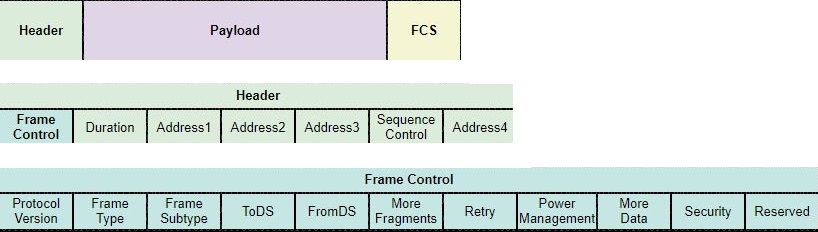
All Layer 2 frames consist of an FCS header, content and section, as shown in Image 1. The 802.11 frame format is similar to the Ethernet frame format, with the exception that it contains more fields .

802.11 wireless frame


All 802.11 wireless frames contain the following fields:
  • Frame control : Identifies the type of wireless frame and contains subfields for the protocol version, frame type, address type, power management and security settings.
  • Duration : in general, it is used to indicate the remaining duration necessary to receive the next frame transmission.
  • Address 1 : Normally, it contains the MAC address of the wireless AP device or receiver.
  • Address 2 : Normally, it contains the MAC address of the wireless transmitter device or AP.
  • Address 3 : sometimes, it contains the MAC address of the destination, such as the router interface (default gateway) to which the AP connects.
  • Sequence control : contains the subfields Sequence number and Fragment number. The Sequence Number indicates the sequence number of each frame. The Fragment Number indicates the number of each frame that was sent from a fragmented frame.
  • Address 4 : usually missing, since it is used only in ad hoc mode.
  • Content : contains the data for transmission.
  • FCS : is the Frame Verification Sequence, used to control Layer 2 errors.

Frame control field

The Frame Control field contains several subfields, as shown in following figure.

Specifically, the Frame Control field contains the following subfields:

  • Protocol version : provides the current version of the 802.11 protocol used. Receiving devices use this value to determine if the protocol version of the received frame is supported.
  • Frame type and Frame subtype : determine the function of the frame. A wireless frame can be a control frame, a data frame or an administration frame.
  • A DS and DS : indicate whether the frame enters or leaves the DS, and is only used in the data frames of the wireless clients associated with an AP.
  • More fragments : indicates if there are more fragments of the frame to receive, whether of the type of data or administration.
  • Retry : indicates whether the frame is transmitted again or not, whether data frames or administration frames.
  • Power management : indicates whether the emitting device is in active mode or in energy saving mode.
  • More data : indicates to a device in power saving mode that the AP has more frames to send. It is also used for APs to indicate that there are additional broadcast and multicast frames.
  • Security : indicates whether encryption and authentication are used in the frame. It can be set for all data and administration frames that have the subtype set to authentication.
  • Reserved : You can indicate that all received data frames must be processed in order.

Wireless frame type

The Frame Type and Frame Subtype fields are used to identify the type of wireless transmission. As shown in the illustration, a wireless frame can be one of three types of frame:

  • Administration frame : it is used for the maintenance of communication, such as the detection of an AP, its authentication and the association with said AP.
  • Control frame: used to facilitate the exchange of data frames between wireless clients.
  • Data frame : used to transport content information, such as web pages and files.

Administration Frames

Administration frames are used exclusively to search for an AP, authenticate and associate with it.

In above figure, the field value of common administration frames is shown, including the following:


  • Association request frame: (0x00) is sent from a wireless client, allows the AP to allocate resources and synchronize. The frame carries information about the wireless connection, including the supported data rates and the SSID of the network to which the wireless client is to be associated. If the request is accepted, the AP reserves memory and establishes an association ID for the device.
  • Association response frame: (0x01) is sent from an AP to a wireless client, it contains the acceptance or rejection of the association request. If it is an acceptance, the frame contains information such as an association ID and the supported data rates.
  • Re-association request frame: (0x02) a device sends a re-association request when it goes out of the scope of the AP to which it is currently associated and finds another AP with a stronger signal. The new AP coordinates the forwarding of all the information that the previous AP buffer may still contain.
  • Re-association response frame: (0x03) is sent from an AP, it contains the acceptance or rejection of a re-association request frame of a device. The frame includes the information required for the association, such as the association ID and the supported data rates.
  • Polling request frame: (0x04) is sent from a wireless client when it requires information from another wireless client.
  • Polling response frame : (0x05) is sent from an AP after receiving a polling request frame and contains capacity information, such as supported data rates.
  • Signal frame: (0x08) is sent periodically from an AP to announce its presence and provide the SSID and other parameters configured previously.
  • Dissociation frame: (0x0A) is sent from a device that wishes to terminate a connection. Allows the AP to stop the memory allocation and remove the device from the association table.
  • Authentication frame : (0x0B) the sending device sends an authentication frame containing its identity to the AP.
  • Deauthentication frame: (0x0C) is sent from a wireless client that wishes to terminate the connection of another wireless client.

Note : Signals are the only administration frames that an AP can transmit on a regular basis. All other polling, authentication and association frames are used only during the association (or re-association) process.

Control frames

Control frames are used to manage the exchange of information between a wireless client and an AP. They help avoid collisions in a wireless medium.
The field value of common control frames, including the following:

  • Send Request Frame (RTS) : RTS and CTS frames provide an optional collision reduction scheme for APs with hidden wireless clients. A wireless client sends an RTS frame as the first step in the two-way link, which is required before sending data frames.
  • Ready to Send Frame (CTS) : A wireless AP responds to an RTS frame with a CTS frame. Provides authorization for the wireless client that made the request to send data frames. The CTS frame contributes to the management of collision control by including a time value. This delay minimizes the likelihood of other customers transmitting while the client who made the request does.
  • Acknowledgment (ACK) frame: After receiving a data frame, the receiving wireless client sends an ACK frame to the sending client if no errors are found. If the sending client does not receive an ACK frame within a predetermined period, it resends the frame.
  • Control frames are essential for wireless transmission and play an important role in the method of contention of the means used by wireless technologies, known as " multiple access by carrier detection and collision prevention " (CSMA / CA).
CSMA / CA Wireless network


Wireless LAN & WLAN Concepts

Wireless LAN & WLAN Concepts

In this article we will discribe Wireless LAN & WLAN Concepts. The components of a wireless LAN infrastructure and wireless topologies.

What is Wireless Technology

Current business networks evolve to support people who are in continuous movement. People connect using various devices, such as desktops and laptops, tablet PCs and smartphones. This is the vision of mobility in which people can travel and take their connection to the network with them.
There are many different infrastructures (wired LAN, service provider networks) that make this type of mobility possible; However, in a business environment, the most important is the wireless LAN (WLAN) .

Benefits of Wireless LAN technology

There are many benefits of supporting wireless networks in the business and home environment . Some of the benefits include increasing flexibility and productivity, reducing costs and the ability to grow and adapt to changing requirements.

For daily operations within the office, most companies rely on LAN-based switches. However, employees are increasingly moving and want to maintain access to the company's LAN resources from other locations besides their desk.
Workers want to bring their wireless devices to meetings, their co-workers' offices, conference rooms and even customer sites and, at the same time, maintain access to office resources. Wireless networks provide this kind of flexibility .
  • It can generate an increase in productivity.
  • Allows access to email and other work related resources quickly and easily.
  • They allow to reduce costs.
  • They have the ability to adapt to changing needs and technologies.

Wireless Technologies

Wireless communications are used in a variety of professions.
While the combination of wireless technologies is continually expanding, this analysis focuses on wireless networks that allow users to move. In general terms, wireless networks are classified into the following types:
  • Wireless personal area networks (WPAN) : have a range of a few meters. In WPAN, devices with Bluetooth or Wi-Fi Direct enabled are used.
  • Wireless LAN (WLAN) : they have a range of about 30 m, as in a room, a home, an office and even a campus.
  • Wireless wide area networks (WWAN) : they have a range of kilometers, such as a metropolitan area, a hierarchy of mobile data or even links between cities through microwave retransmissions.

Types of Wireless LAN

  • Bluetooth : originally it was a WPAN IEEE 802.15 standard that uses a device pairing process to communicate over distances of up to 0.05 mi (100 m). The Bluetooth Special Interest Group ( https://www.bluetooth.org/ ) standardizes the latest versions of Bluetooth.
  • Wireless fidelity (Wi-Fi) : It is an IEEE 802.11 WLAN standard that is generally implemented to provide access to the network to home and business users, which allows data, voice and video traffic to be included at distances of up to 300 m (0 , 18 mi)
  • Global Interoperability for Microwave Access (WiMAX) : This is a WWAN IEEE 802.16 standard that provides access to wireless broadband services up to 30 mi (50 km) WiMAX is an alternative to cable and DSL broadband connections.
  • Cellular broadband : consists of several national and international business organizations that use mobile data access from a service provider to provide cellular broadband network connectivity. Available for the first time in 1991 with second generation cell phones (2G), with higher speeds available in 2001 and 2006 as part of the third (3G) and fourth (4G) generation of mobile communications technology.
  • Satellite broadband : Provides network access to remote sites through the use of a directional satellite dish that aligns with a specific satellite in the Earth's geostationary orbit (GEO). It is usually more expensive and requires a clear line of sight.
There are many types of wireless technologies available. However, this chapter focuses on 802.11 WLANs.

Radio frequencies

All wireless devices operate in the radio wave band of the electromagnetic spectrum. It is the responsibility of the Radiocommunication Sector of the International Telecommunication Union (ITU-R) to regulate the assignment of the radio frequency (RF) spectrum.
The frequency ranges, called " bands ", are assigned for different purposes. Some bands in the electromagnetic spectrum are largely regulated and are used for applications such as air traffic control and emergency response communications networks. Other bands are not licensed, such as the industrial, scientific and medical band (ISM) and the national information infrastructure band (UNII).

Wireless communication occurs in the band of radio waves (i.e. 3 Hz to 300 GHz) of the electromagnetic spectrum, as shown in Image 3. The band of radio waves is subdivided into a section of radio frequencies and a microwave frequency section.
Wireless LAN devices have transmitters and receivers tuned to specific frequencies of the radio waveband. Specifically, the following frequency bands are assigned to 802.11 wireless LANs:
  • 2.4 GHz (UHF) : 802.11b / g / n / ad
  • 5 GHz (SHF) : 802.11a / n / ac / ad
  • 60 GHz band (EHF) : 802.11ad

802.11 Standards

The IEEE 802.11 WLAN standard defines how RF is used in ISM frequency bands without a license for the physical layer and MAC sublayer of wireless links.
Over the years, several implementations of the IEEE 802.11 standard were developed. Here are these standards:

  • 802.11 : released in 1997 and now obsolete, it is the original WLAN specification that worked in the 2.4 GHz band and offered speeds of up to 2 Mb / s.
  • IEEE 802.11a : launched in 1999, operates in the 5 GHz frequency band, less populated, and offers speeds up to 54 Mb / s.
  • IEEE 802.11b : launched in 1999, it operates in the 2.4 GHz frequency band and offers speeds of up to 11 Mb / s.
  • IEEE 802.11g : launched in 2003, it operates in the 2.4 GHz frequency band and offers speeds of up to 54 Mb / s.
  • IEEE 802.11n : launched in 2009, it operates in the 2.4 GHz and 5 GHz frequency bands, and is known as a “dual band device”. Typical data rates range from 150 Mb / s to 600 Mb / s, with a range of up to 70 m (0.5 mi).
  • IEEE 802.11ac : launched in 2013, it operates in the 5 GHz frequency band and provides data rates ranging from 450 Mb / s to 1.3 Gb / s (1300 Mb / s).
  • IEEE 802.11ad : launched in 2014 and also known as " WiGig ", it uses a triple band Wi-Fi solution with 2.4 GHz, 5 GHz and 60 GHz, and offers theoretical speeds of up to 7 Gb / s.

Wi-Fi Certification

The standards ensure interoperability between devices made by different manufacturers. The three organizations that influence WLAN standards worldwide are the following:
  • ITU-R : regulates the assignment of the RF spectrum and satellite orbits.
  • IEEE : specifies how RF is modulated to transport information. It maintains the standards for local and metropolitan area networks (MAN) with the family of LAN and MAN IEEE 802 standards. The dominant standards in the IEEE 802 family are 802.3 Ethernet and 802.11 WLAN.
  • Wi-Fi Alliance : Wi-Fi Alliance® ( http://www.wi-fi.org ) is a global nonprofit trade association dedicated to promoting the growth and acceptance of WLAN networks.
Wi-Fi Alliance certifies Wi-Fi compatibility with the following products:
  • IEEE 802.11a / b / g / n / ac / ad support
  • IEEE 802.11i secure with WPA2 ™ and Extensible Authentication Protocol (EAP)
  • Wi-Fi Protected Setup (WPS) to simplify device connection
  • Wi-Fi Direct to share media between devices
  • Wi-Fi Passpoint to securely simplify connection to Wi-Fi coverage zone networks
  • Miracast Wi-Fi to display seamless video between devices
Figure 1 shows the Wi-Fi Alliance logos that identify compatibility with a specific feature. Devices that display specific logos support the identified feature. The devices can display a combination of these logos.

Comparison between WLAN networks and a LAN

WLANs share a similar origin with Ethernet LANs. The IEEE adopted the 802 LAN / MAN portfolio of computer network architecture standards. The two dominant 802 working groups are Ethernet 802.3 and WLAN 802.11 . However, there are important differences between them.

WLANs use RF instead of wires in the physical layer and the MAC sublayer of the data link layer. Compared to the cable, the RF has the following characteristics:
  • The RF has no limits, like the limits of a wrapped cable.
  • The RF signal is not protected from outside signals, as is the cable in its insulating sheath.
  • RF transmission is subject to the same challenges inherent in any wave-based technology, such as commercial radio.
  • RF bands are regulated differently in each country.
WLANs also differ from wired LANs as follows:
  • WLANs connect clients to the network through wireless access points (APs) or a wireless router, rather than through an Ethernet switch.
  • WLANs connect mobile devices that, in general, are battery powered, instead of connected LAN devices.
  • WLANs support hosts that dispute access to RF media (frequency bands).
  • WLANs use a different frame format than wired Ethernet LANs.
  • WLANs have major privacy inconveniences because radio frequencies can leave the premises.

WLAN Components

The simplest wireless network requires at least two devices. Each device must have a radio transmitter and a radio receiver tuned to the same frequencies.
However, most wireless implementations require the following:
  • Terminals with wireless NICs
  • Infrastructure device, such as a wireless router or AP

Wireless NICs

To communicate wirelessly, the terminals require a wireless NIC that incorporates a radio transmitter or receiver and the software driver necessary for it to work.
Laptops, tablet PCs and smartphones now include integrated wireless NICs. However, if a device does not have an integrated wireless NIC, a USB wireless adapter can be used .

Wireless home router

The type of infrastructure device to which a terminal is associated and with which it is authenticated varies according to the size and requirements of the WLAN.
For example, a home user normally interconnects wireless devices through a small integrated wireless router. These smaller integrated routers work like the following:
  • Access point : provides 802.11a / b / g / n / ac wireless access.
  • Switch : provides a 10/100/1000, full-duplex, four-port Ethernet switch for wired devices.
  • Router : provides a default gateway for connection to other network infrastructures.
For example, the Cisco Linksys EA6500 router, shown in Image 8, is usually deployed as a residential or small business wireless access device.
The wireless router connects to the DLS modem of the ISP and announces its services by sending signals containing its shared service set identifier (SSID). The internal devices wirelessly detect the router's SSID and try to associate and authenticate with it to access the Internet.

Wireless Solutions for companies

Organizations that provide wireless connectivity to their users require a WLAN infrastructure to provide additional connectivity options.
The network of a small business shown in Image 9 is an 802.3 Ethernet LAN. Each client (that is, PC1 and PC2) is connected to a switch using a network cable. The switch is the point where clients access the network. Note that the wireless AP also connects to the switch.

Wireless clients use the wireless NIC to detect nearby APs that advertise their SSID. The clients then try to associate and authenticate with an AP. After authentication, wireless users have access to network resources.

Wireless access points

APs can be categorized as stand-alone APs or controller-based APs.

Autonomous AP

Autonomous APs, sometimes referred to as “ heavy APs ,” are autonomous devices that are configured using the Cisco CLI or a GUI.
Autonomous APs are useful in situations where only one pair of APs is required in the network. Optionally, multiple APs can be controlled using the wireless domain services (WDS) and can be managed using the Cisco Works Wireless LAN Solutions (WLSE) engine.
In Image 10, a stand-alone AP is shown in a small network. If wireless demands increase, more APs would be required. Each AP would function independently of the other APs and would require manual configuration and administration.

Controller-based APs

Controller-based APs are devices that depend on the server and do not require initial configuration. Cisco offers two controller-based solutions.
Controller-based APs are useful in situations where many APs are required on the network. As more APs are added, a WLAN controller automatically configures and manages each AP.
In Image 11, a controller-based AP is shown in a small network. Notice how a WLAN driver is now required to manage APs. The benefit of the driver is that it can be used to manage many APs.

Note : Some AP models may operate in standalone mode or in controller-based mode.

802.11 WLAN topologies

Wireless LANs can use different network topologies. The 802.11 standard identifies two main modes of wireless topology:
  • Ad hoc mode : when two devices connect wirelessly without the help of an infrastructure device, such as a router or a wireless AP. Examples include Bluetooth and Wi-Fi Direct.
  • Infrastructure mode : when wireless clients connect via a router or wireless AP, such as in WLANs. The APs are connected to the network infrastructure through the cable-connected distribution system (DS), such as Ethernet.

Ad hoc mode

There is an ad hoc wireless network when two wireless devices communicate peer-to-peer (P2P) without using APs or wireless routers.
For example, a client's workstation with wireless capability can be configured to operate in ad hoc mode, allowing another device to connect to the station. Bluetooth and Wi-Fi Direct are examples of ad hoc mode.
There is a variation of the ad hoc topology when a smartphone or tablet PC with cellular data access is allowed to create a personal wireless coverage area. Sometimes, this feature is called " network anchoring ."
Generally, a wireless coverage zone is a quick temporary solution that allows a smartphone to provide the wireless services of a Wi-Fi router. Other devices are associated and authenticated with the smartphone to use the Internet connection. Apple's iPhone calls this feature " Internet Sharing ", while Android devices call it " Network tethering and portable coverage zone ."

Infrastructure mode

The IEEE 802.11 architecture consists of several components that interact to provide a WLAN that supports clients. It defines two basic components of the infrastructure mode topology: a set of basic services (BSS) and a set of extended services (ESS).

Basic Services Set

A BSS consists of a single AP that interconnects all associated wireless clients. In Image 13, two BSS are shown.
The circles represent the coverage area within which BSS wireless clients can remain communicated. This area is called the " basic services area " (BSA).
If a wireless client leaves your BSA, you can no longer communicate directly with other wireless clients within the BSA. The BSS is the basic component of the topology, while the BSA is the real coverage area (the terms BSA and BSS are often used interchangeably).
The Layer 2 MAC address of the AP is used to uniquely identify each BSS and is called the “ basic service set identifier. " (BSSID). Therefore, the BSSID is the formal name of the BSS and is always associated with a single AP.

 Extended Service Set

When a single BSS provides insufficient RF coverage, two or more BSSs can be joined through a common distribution system (DS) to form an ESS.
Wireless clients in one BSA can now communicate with wireless clients in another BSA within the same ESS. Clients with mobile wireless connection can be moved from one BSA to another (within the same ESS) and can be connected without inconvenience.
The rectangular area represents the coverage area within which members of an ESS can communicate. This area is called the “ extended services area ” (ESA). An ESA often involves several BSS in overlapping or separate configurations.
Each ESS is identified by an SSID and, in an ESS, each BSS is identified by its BSSID. For security reasons, additional SSIDs can be propagated through the ESS to segregate the level of network access.

Sunday, 20 October 2019

Configure of DHCP server and DHCP Client on Cisco Router

Configure of DHCP server and DHCP Client on Cisco Router

In this section, you will get complete details on Configure of DHCP server and DHCP Client on Cisco Router. Step by step and all the commands you should learn. If you learn about what is DHCP you can visit here.
A Cisco router running Cisco IOS software can be configured to function as a DHCP server . The DHCP server used by Cisco IOS assigns and manages IPv4 addresses from specified address sets within the router for DHCP clients. The topology shown in figure is used to illustrate this functionality.

HOW TO CONFIGURE A DHCP SERVER IN CISCO ROUTER

  • Step 1: Exclude IPv4 addresses

The router that functions as a DHCP server assigns all IPv4 addresses in a set of DHCP addresses, unless it is configured to exclude specific addresses. Generally, some IPv4 addresses in a set are assigned to network devices that require static address assignments. Therefore, these IPv4 addresses should not be assigned to other devices. To exclude specific addresses, use the ip dhcp excluded-address command  , as shown below:
R1 (config) # ip dhcp excluded-address  low-address [ high-address ]
A single address or range of addresses can be excluded by specifying the lowest address and the highest address in the range. Excluded addresses must include the addresses assigned to routers, servers, printers and other devices that were configured or will be configured manually.
R1 (config) # ip dhcp excluded-address 192.168.10.1 192.168.10.9
R1 (config) # ip dhcp excluded-address 192.168.10.254

  • Step 2: Configure a DHCPv4 pool

The configuration of a DHCP server involves defining a set of addresses to be assigned. As shown below, the ip dhcp pool set-  name command   creates a set with the specified name and places the router in DHCP configuration mode, which is identified with the Router (dhcp-config) # flag.
R1 (config) # ip dhcp pool  pool-name 
R1 (dhcp-config) #
R1 (config) # ip dhcp pool LAN-POOL-1 
R1 (dhcp-config) #

  • Step 3: Configure specific tasks

Finally, the tasks to complete the configuration of the DHCP pool are indicated. Some of them are optional, while others must be configured.

REQUIRED AND OPTIONAL TASKS FOR DHCP

Required Tasks
Required Tasks
Command
Define the address set.
network network number [mask | prefix-length]
Define the default router or gateway.
default-router address [address2… address8]
Table of configuration of specific tasks.
Optional Tasks

Optional Tasks
Command
Define a DNS server.
dns-server address [address2… address8]
Define the domain name.
domain-name domain
Define the duration of the DHCP grant.
read {days [hours] [minutes] | infinite}
Define the WINS server with NetBIOS.
netbios-name-server address [address2… address8]
Table of configuration of specific tasks.
Use the default-router command   to define the default gateway router. Normally, the gateway is the LAN interface of the router closest to the client devices. A gateway is required, but up to eight addresses can be indicated if there are several gateways.
Other commands in the DHCP pool are optional. For example, the IPv4 address of the DNS server that is available to a DHCP client is configured using the dns-server command  . The  domain-name  domain command  is used to define the domain name. The lease duration of DHCPv4 can be modified using the lease command  . The default lease value is one day. The netbios-name-server command   is used to define the WINS server with NetBIOS.

DHCP CONFIGURATION EXAMPLE

An example configuration with basic DHCPv4 parameters configured on router R1 is shown below. R1 is configured as a DHCPv4 server for LAN 192.168.10.0/24 using the example topology of Image 1.
R1 (config) # ip dhcp excluded-address 192.168.10.1 192.168.10.9
R1 (config) # ip dhcp excluded-address 192.168.10.254 
R1 (config) # ip dhcp pool LAN-POOL-1
R1 (dhcp-config) # network 192.168.10.0 255.255.255.0
R1 (dhcp-config) # default-router 192.168.10.1
R1 (dhcp-config) # dns-server 192.168.11.5
R1 (dhcp-config) # domain-name example.com
R1 (dhcp-config) # end
R1 #
The DHCP service is enabled by default. To disable the service, use the global configuration mode no service dhcp command  . Use the dhcp  global configuration mode command  to re-enable the DHCP server process. If the parameters are not set, enabling the service has no effect.

DHCP VERIFICATION

In the example result, the topology shown in Image 1 is used. In this example, R1 was configured to provide DHCP services. Since PC1 did not turn on, it does not have an IP address.

SHOW RUNNING-CONFIG COMMAND

As shown below, in the result of the  show running-config | dhcp section , the DHCP commands configured in R1 are displayed. The parameter  | section  shows only the commands associated with the DHCP configuration.
R1 # show running-config | dhcp section
ip dhcp excluded-address 192.168.10.1 192.168.10.9
ip dhcp excluded-address 192.168.10.254
ip dhcp excluded-address 192.168.11.1 192.168.11.9
ip dhcp excluded-address 192.168.11.254
ip dhcp pool LAN-POOL-1
 network 192.168.10.0 255.255.255.0
 default-router 192.168.10.1 
 dns-server 192.168.11.5 
 domain-name example.com
ip dhcp pool LAN-POOL-2
 network 192.168.11.0 255.255.255.0
 default-router 192.168.11.1 
 dns-server 192.168.11.5 
 domain-name example.com
R1 #
SHOW IP DHCP BINDING COMMAND
As shown in the following result, DHCPv4 operation can be verified using the show ip dhcp binding command  . This command shows a list of all the links of the IPv4 address with the MAC address that were provided by the DHCPv4 service.

R1 # show ip dhcp binding Bindings from all pools not associated with VRF: IP address Client-ID / Lease expiration Type Hardware address / User Name
The following command,  show ip dhcp server statistics , is used to verify if the router receives or sends messages. This command displays counting information regarding the number of DHCPv4 messages that were sent and received.R1 # show ip dhcp server statistics
Memory usage 23543
Address pools 1
Database agents 0
Automatic bindings 0
Manual bindings 0
Expired bindings 0
Malformed messages 0
Secure arp entries 0

Message Received
BOOTREQUEST 0
DHCPDISCOVER 0
DHCPREQUEST 0
DHCPDECLINE 0
DHCPRELEASE 0
DHCPINFORM 0

Message Sent
BOOTREPLY 0
DHCPOFFER 0
DHCPACK 0
DHCPNAK 0
R1 #
As seen in the result of these commands, there are currently no links, and statistics indicate that there are no messages sent or received. At this time, no device requested DHCPv4 services from router R1.

SHOW IP DHCP COMMAND

In the following result, the commands are issued after PC1 and PC2 were turned on and the boot process finished.
R1 # show ip dhcp binding
Bindings from all pools not associated with VRF:
IP address Client-ID / Lease expiration Type
           Hardware address /
           User Name
192.168.10.10 0100.e018.5bdd.35 May 28 2013 01:06 PM Automatic
192.168.11.10 0100.b0d0.d817.e6 May 28 2013 01:10 PM Automatic
R1 # show ip dhcp server statistics
Memory usage 25307
Address pools 2
Database agents 0
Automatic bindings 2
Manual bindings 0
Expired bindings 0
Malformed messages 0
Secure arp entries 0

Message Received
BOOTREQUEST 0
DHCPDISCOVER 8
DHCPREQUEST 3
DHCPDECLINE 0
DHCPRELEASE 0
DHCPINFORM 0

Message Sent
BOOTREPLY 0
DHCPOFFER 3
DHCPACK 3
DHCPNAK 0
R1 #
Note that the information about the bindings now shows that IPv4 addresses 192.168.10.10 through 192.168.11.10 joined the MAC addresses. Statistics also show DHCPDISCOVER, DHCPREQUEST, DHCPOFFER and DHCPACK activity.

IPCONFIG / ALL COMMAND

As shown in Image 2, the ipconfig / all command  , when issued on PC1, shows the TCP / IP parameters. Since PC1 was connected to network segment 192.168.10.0/24, it automatically received a DNS suffix, an IPv4 address, a subnet mask, a default gateway and a DNS server address from that pool. No DHCP specific router interface configuration is required. If a computer is connected to a network segment that has an available DHCPv4 pool, the computer can obtain an IPv4 address from the appropriate pool automatically.

DHCP RELAY

In a complex hierarchical network, business servers are usually located in a server farm. These servers can provide DHCP, DNS, TFTP and FTP services for the network. Generally, network clients are not on the same subnet as those servers. To locate servers and receive services, clients often use broadcast messages.

In figure, PC1 attempts to acquire an IPv4 address from a DHCP server through a broadcast message. In this situation, router R1 is not configured as a DHCPv4 server and does not forward the broadcast message. Since the DHCPv4 server is located on a different network, PC1 cannot receive an IP address via DHCP.

IPCONFIG / RELEASE AND IPCONFIG / RENEW COMMANDS

In Image 4, PC1 tries to renew its IPv4 address. To do this, the ipconfig / release command is issued  . Note that the IPv4 address is released, and the address is shown to be 0.0.0.0. Next, the ipconfig / renew command is issued  . This command causes PC1 to broadcast a DHCPDISCOVER message. The result shows that PC1 cannot locate the DHCPv4 server. Since routers do not forward broadcast messages, the request is not correct.

As a solution to this problem, an administrator can add DHCP servers on all subnets. However, running these services on several computers generates an additional cost and administrative overhead.
A better solution is to configure a Cisco IOS help address. This solution allows the router to forward DHCPv4 broadcasts to the DHCPv4 server. When a router forwards assignment requests / address parameters, it acts as a DHCPv4 relay agent. In the example topology, PC1 would broadcast a request to locate a DHCPv4 server. If R1 was configured as a DHCPv4 relay agent, it would forward the request to the DHCPv4 server located on subnet 192.168.11.0.

IP HELPER-ADDRESS COMMAND

As shown below, the interface on R1 that receives the broadcast is configured with the ip helper-address interface configuration mode command  . The DHCP server address is configured as the only parameter.
R1 (config) # interface g0 / 0
R1 (config-if) # ip helper-address 192.168.11.6
R1 (config-if) # end
R1 # show ip interface g0 / 0
GigabitEthernet0 / 0 is up, line protocol is up 
 Internet address is 192.168.10.1/24
 Broadcast address is 255.255.255.255
 Address determined by setup command
 MTU is 1500 bytes
 Helper address is 192.168.11.6
When R1 is configured as a DHCP relay agent, it accepts broadcast requests for the DHCP service and then forwards those requests as a unicast to IPv4 address 192.168.11.6. The show ip interface command   is used to verify the configuration.
As shown in Image 5, PC1 can now acquire an IPv4 address from the DHCPv4 server.

DHCPv4 is not the only service that can be configured to relay the router. By default, the ip helper-address command   forwards the following eight UDP services:

  • Port 37: Time
  • Port 49: TACACS
  • Port 53: DNS
  • Port 67: DHCP / BOOTP client
  • Port 68: DHCP / BOOTP server
  • Port 69: TFTP
  • Port 137: NetBIOS Name Service
  • Port 138: NetBIOS datagram service

Configuration of a router as a DHCPv4 client

Occasionally, Cisco routers in small offices and home offices (SOHO) and at branch sites must be configured as DHCPv4 clients similar to client computers. The specific method used depends on the ISP. However, in its simplest configuration, the Ethernet interface is used to connect to a cable modem or a DSL modem. To configure an Ethernet interface as a DHCP client, use the ip address dhcp interface configuration mode command  .

In figure, suppose an ISP was configured to provide IP addresses of the network range 209.165.201.0/27 to select clients. After the G0 / 1 interface is configured with the  ip address dhcp command, the show ip interface g0 / 1 command   confirms that the interface is activated and that the address was assigned by a DHCPv4 server.

SOHO (config) # interface g0 / 1
SOHO (config-if) # ip address dhcp
SOHO (config-if) # no shutdown
SOHO (config-if) #
* Jan 31 17: 31: 11.507:% DHCP-6-ADDRESS_ASSIGN: Interface
GigabitEthernet0 / 1 assigned DHCP address 209.165.201.12, mask
255.255.255.224, hostname SOHO
SOHO (config-if) # end
SOHO # show ip interface g0 / 1
GigabitEthernet0 / 1 is up, line protocol is up
 Internet address is 209.165.201.12/27
 Broadcast address is 255.255.255.255
 Address determined by DHCP

CONFIGURING A WIRELESS ROUTER AS A DHCP CLIENT

Normally, wireless routers for home or small office use are connected to an ISP using a cable modem or DSL. In most cases, wireless routers are configured to receive IPv4 addressing information automatically from the ISP.

For example, the illustration shows the default WAN configuration page for a Packet Tracer wireless router. Note that the type of Internet connection is set to  Automatic Configuration - DHCP  . This selection is used when the router connects to a modem or DSL cable and acts as a DHCP client and requests an IPv4 address from the ISP.